Checking Your Design · Guide 06
Reading the Validator
Let DCPowerPlanner.com check your design for fuse sizing errors, missing protection, and other safety issues.
1
Open the Validator Tab
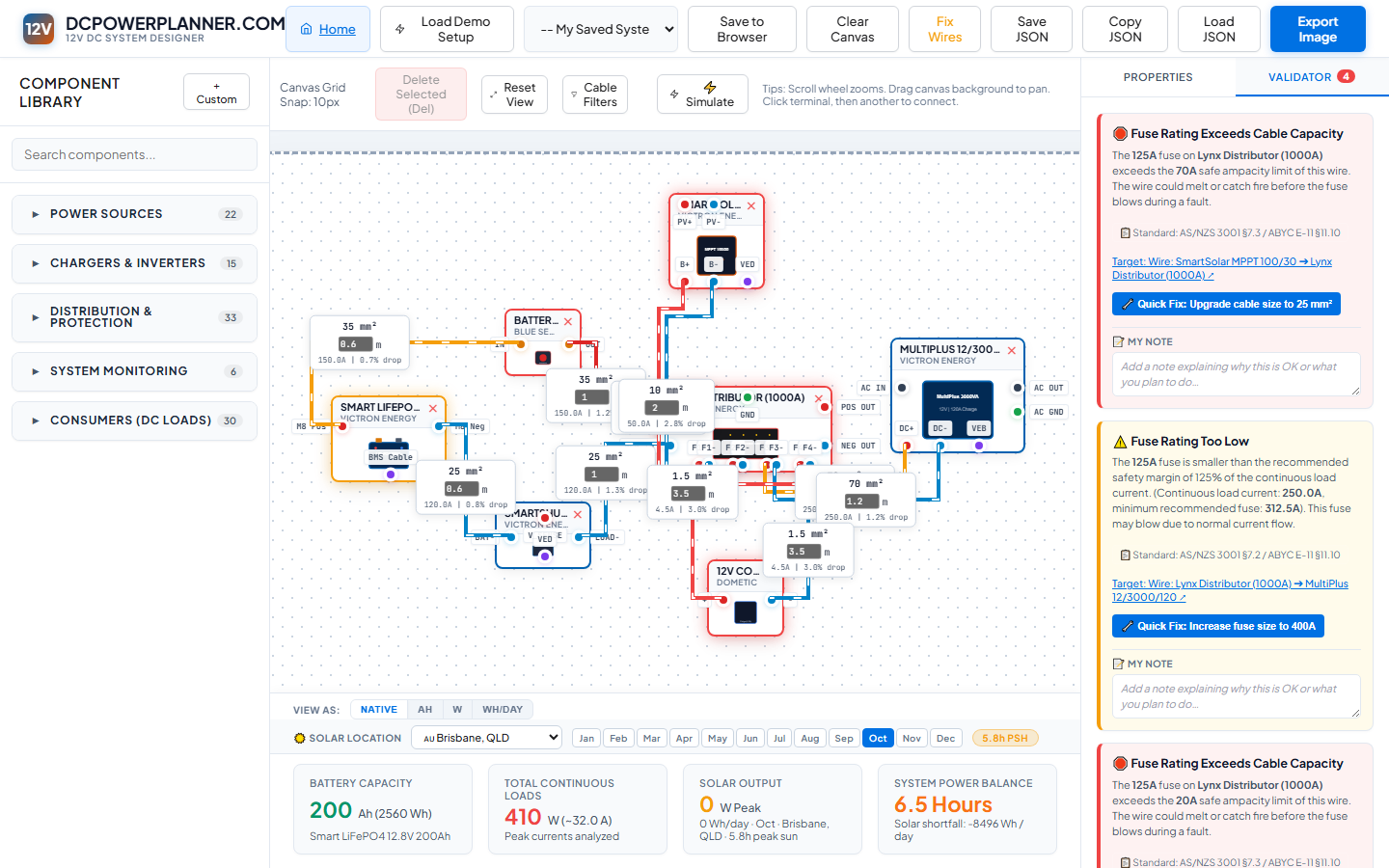
In the right panel, click the Validator tab. The number badge on the tab always shows the current issue count — it updates in real time as you build. The validator runs automatically; you don't need to trigger it manually. Switch between Properties and Validator tabs freely at any time.
TipAn empty validator (badge showing 0) means your design is clean. Aim for zero errors before considering your design ready to share with an electrician.
2
Understanding Issue Severity
Red errors are critical safety issues — cable with no fuse protection, severely undersized wire, or missing negative connection. These should always be resolved.
Yellow warnings are advisory — fuse close to cable limit, non-ideal cable lengths. Discuss with your electrician.
Blue info items are general notes and suggestions.
ImportantWarnings do not mean safe to ignore. Always have a licensed auto-electrician review all validation issues before any physical installation.