← All Guides Open Designer
Building Your System · Guide 05

Connecting & Sizing Cables

Draw wires between terminals, set cable lengths, and let DCPowerPlanner.com recommend the right cable size.

Quick Preview Silent autoplay · Scroll down for the full walkthrough
1

The Wired System at a Glance

Once your components are connected, the canvas shows a colour-coded wiring diagram. Red wires are DC positive, blue wires are DC negative, white wires are AC, and purple wires are VE.Bus, VE.Direct, or data communication cables. Cable size labels appear on each wire when enabled.
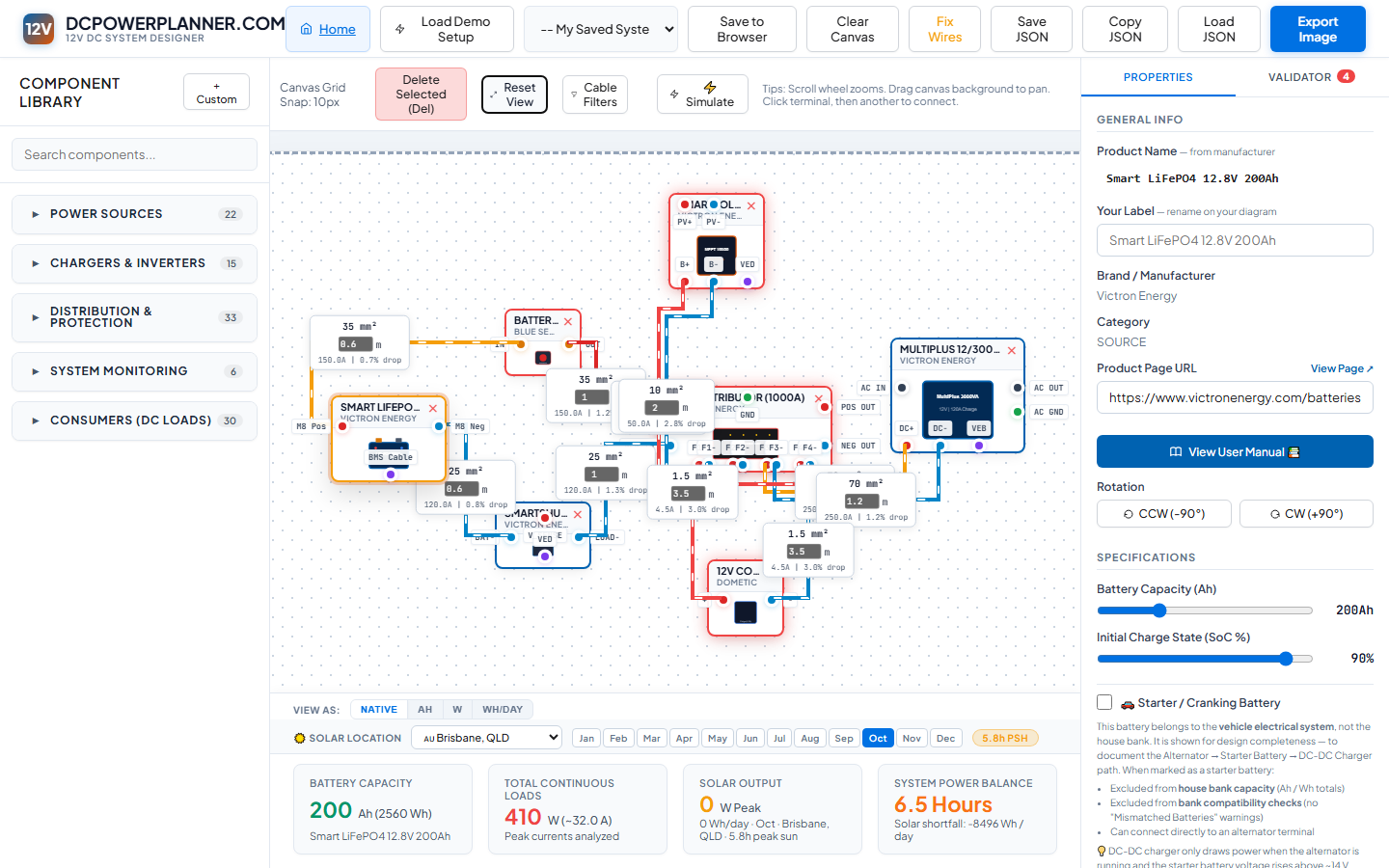
A fully wired system — colour-coded cables with size labels visible.
TipUse the Cable Filters button to hide or show specific wire types for a cleaner view of complex systems.
2

Using Cable Filters

Click Cable Filters in the canvas toolbar to open the filter popover. Toggle any wire type on or off: DC Positive, DC Negative, AC, or VE/Data/Comm. You can also toggle cable size labels on or off. This is especially useful in complex systems where overlapping wires make the canvas hard to read.
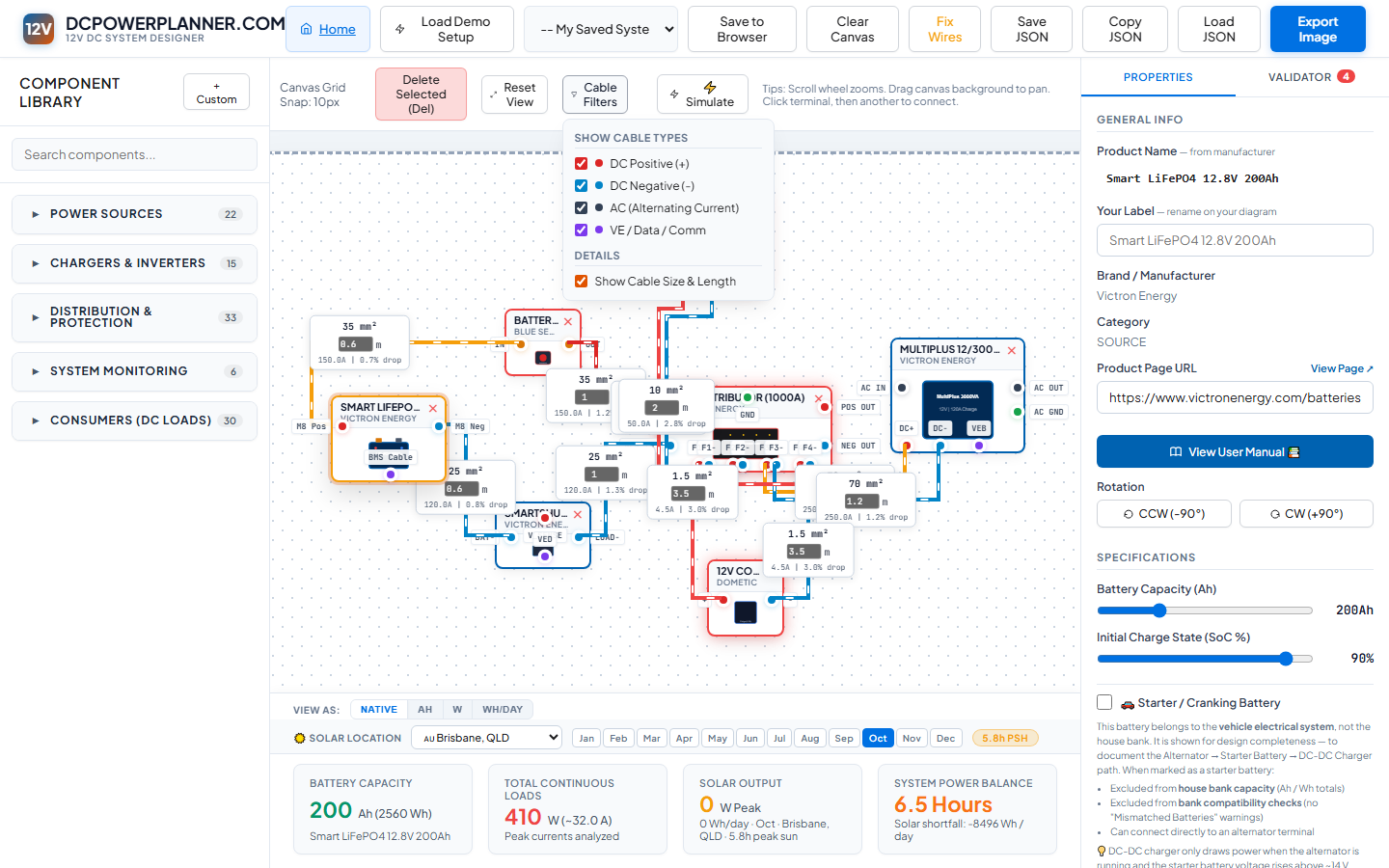
Cable Filters popover — toggle visibility of wire types and size labels.
TipTurning off DC Negative cables temporarily is a great way to focus on just the positive circuit and fuse layout.
3

Connecting Two Terminals

To draw a wire, click a terminal on one component — it highlights to show it's selected. Then click the matching terminal on another component to complete the connection. The wire is drawn automatically with the correct colour. Press Escape at any time to cancel a wire in progress.

Completed wire connections — hover any terminal to see its label before connecting.
TipHover over terminals to see their labels (e.g. 'MPPT PV+', 'Battery NEG') before connecting, so you always make the right connection.
ImportantDCPowerPlanner.com prevents invalid connections (e.g. positive to negative). If a wire won't draw, check you are connecting compatible terminal types.
Full Walkthrough Step-by-step video with captions
💡 Tip: Turn on captions (CC button) for step-by-step descriptions as you watch.
← The Component Library
Next: The Validator →