← All Guides Open Designer
Building Your System · Guide 04

The Component Library

Find any component by searching or browsing — then drag it straight onto your canvas.

Quick Preview Silent autoplay · Scroll down for the full walkthrough
1

Search for a Specific Component

The search bar at the top of the left panel filters the library in real time as you type. Search by product name (e.g. "SmartSolar"), brand (e.g. "Victron"), or type (e.g. "MPPT", "battery", "inverter"). The matching components appear instantly.
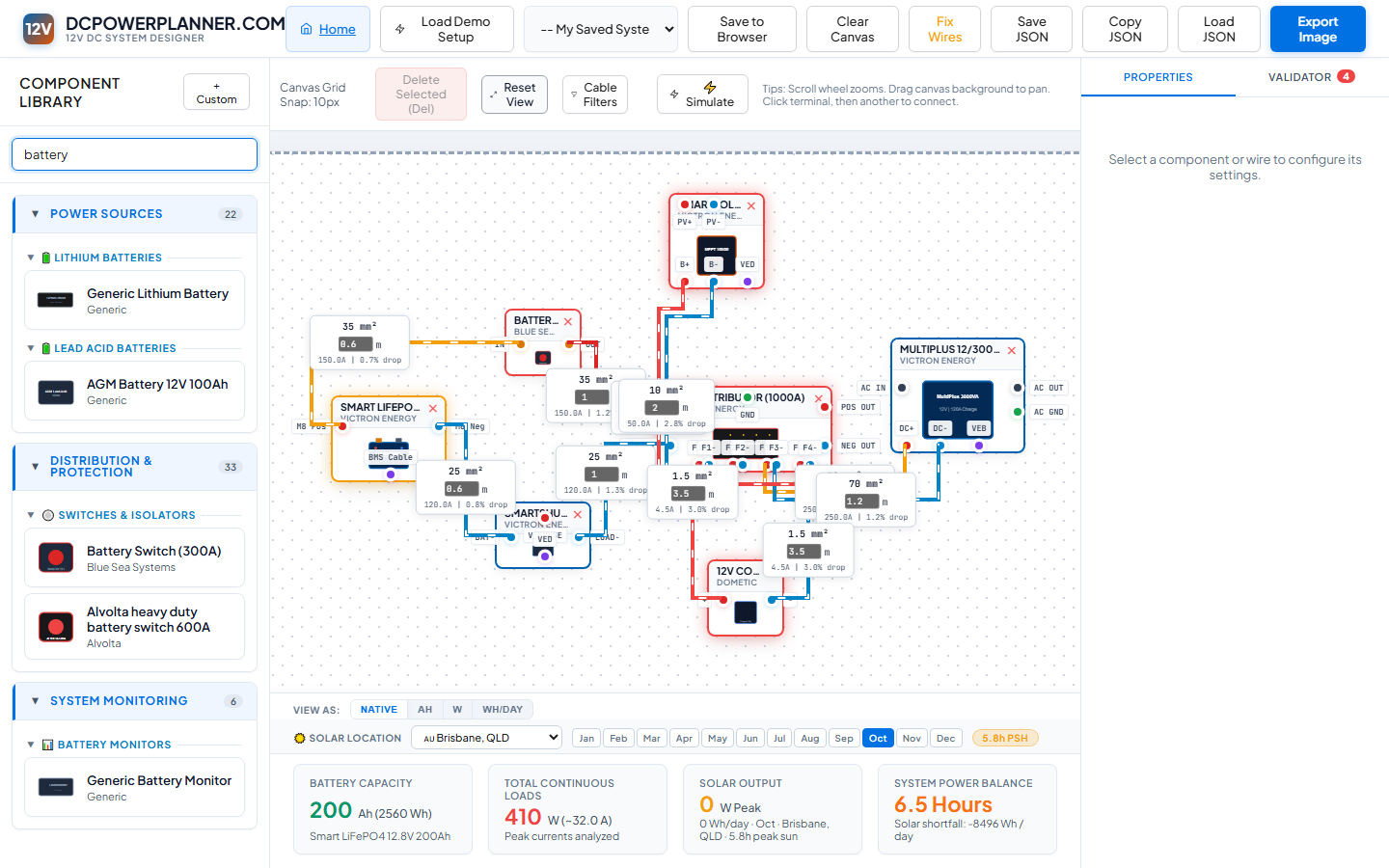
Searching for 'battery' — all matching components appear filtered in the left panel.
2

Browse by Category

Clear the search box to see the full library grouped by category: Power Sources & Batteries, Chargers & Inverters, Distribution & Protection, System Monitors, and Consumer Loads. Click any category header to expand or collapse it.
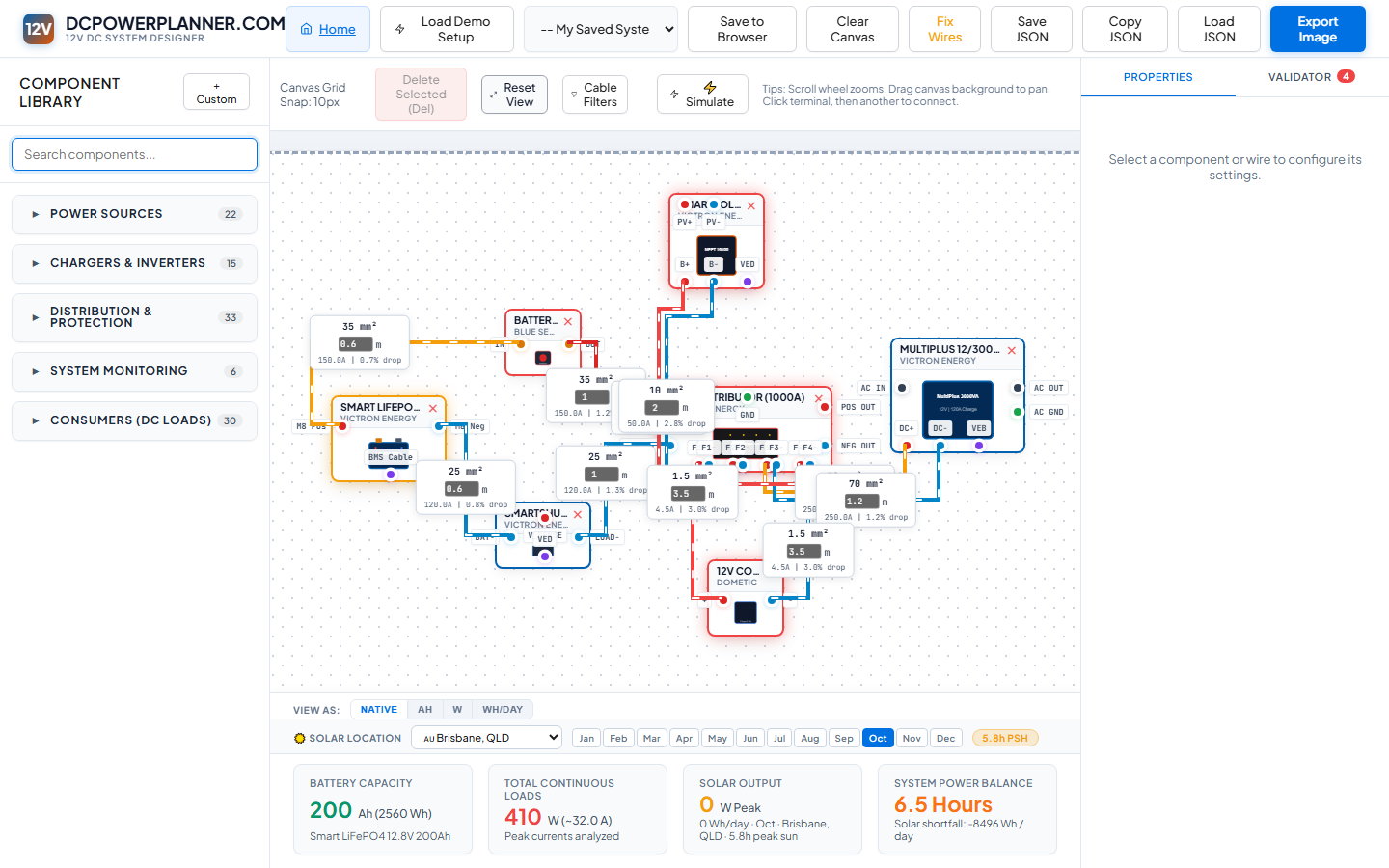
The full library showing all component categories expanded.
Tip200+ real-world products are included from brands like Victron Energy, KickAss, EnergyEco, Blue Sea Systems, and Renogy.
3

Drag a Component onto the Canvas

Found what you need? Click and drag it from the library panel onto the canvas. Release the mouse to drop it. Components snap to the 10px grid automatically. You can drag them to any position and reposition them at any time by clicking and dragging them on the canvas.

Drag any component from the left panel directly onto the canvas.
TipAfter dropping a component, click it to open its Properties in the right panel — where you can set the label, capacity, fuse rating, and other specs.
Full Walkthrough Step-by-step video with captions
💡 Tip: Turn on captions (CC button) for step-by-step descriptions as you watch.
← Loading the Demo System
Next: Connecting & Sizing Cables →